

Technology
Yenka Technology is a powerful, but easy-to-use, simulator for systems and control.
It lets you design circuits, with a vast library of digital and analog electronics. You can program PIC or PICAXE chips, and model the circuit in full 3D, with mechanical inputs and outputs.
Yenka Technology has been designed for children as young as 10 to use – unlike most of our competitors, which are converted industrial simulators.
As a result, Yenka’s interface is easy to learn, and the software simulates as you work – so you can see how your changes affect the circuit straight away.
Electronics
Yenka Electronics lets you design and simulate circuits using over 150 types of components, testing and refining your design as you work.
Professional electronic tools for schools
Based on the original Crocodile Clips simulation engine, Yenka makes electronic design straightforward – even for less experienced users.
Design circuits easily
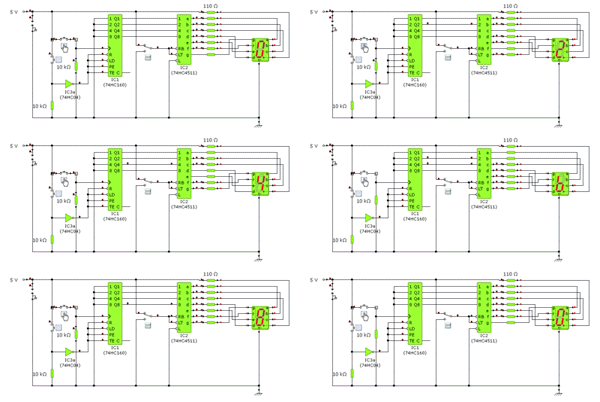
Choose components from the extensive library, draw wires with your mouse, and see the circuit spring to life.
Analogue electronics
These range from simple power supplies and switches, through inputs, sensors and outputs, to semiconductors and op-amps.
Digital electronics
With logic gates and extensive sets of 4000 and 7400 series ICs.
Edit maximum component ratings
Simplified circuit editing
Study multiple events: roll two dice or flip three coins, and follow the tree diagram to see the probability for each combined outcome.
PICS
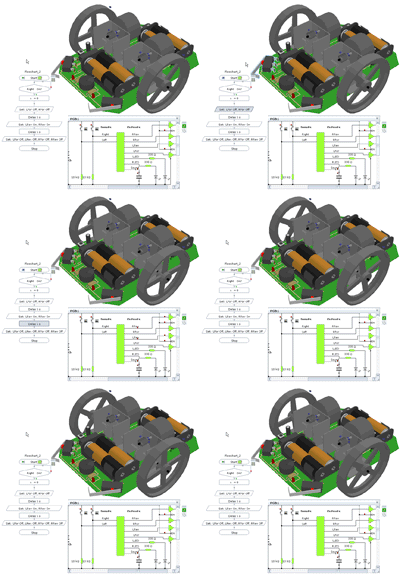
Yenka lets you write routines using simple flowcharts, and test them on-screen, before using them to program real PIC or PICAXE chips.
Programming is easy
Snap flowchart commands together to program your chip, and click a command to edit its properties – like input status and variable values.
Simulate the full circuit
Use Yenka Electronics with Yenka PICs to design the input and output circuits for your PIC or PICAXE. You can then simulate and test them with the chip.
Program real hardware
The Windows version of Yenka PICs programs the following real chips directly, provided you’ve got the right programming hardware:
-
PICAXEs 08, 08M, 14M, 18, 18A, 18M, 18X, 20M, 28, 28A, 28X, 28X1
-
PICs 16F627, 16F628, 16F84, 16F84A and 16F872.
Gears
Straightforward 3D design tools
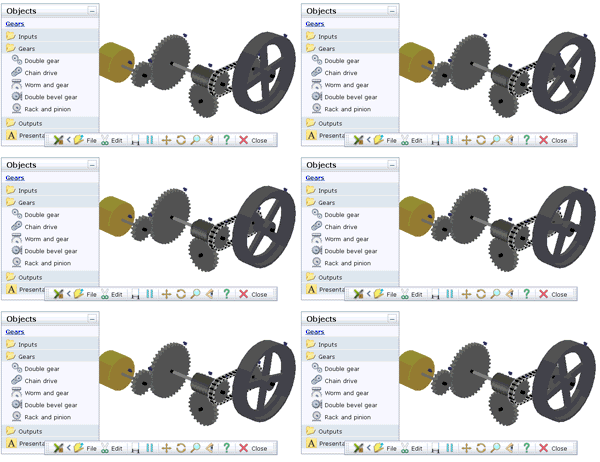
Mechanical components are straightforward to use: they snap together automatically, and can be moved and rotated in each of the 3 dimensions.
Gears can be linked directly to each other, or using a chain drive of any length. Each gear lets you set its diameter precisely, and choose how many teeth it has, and how big they are.
To change the direction of rotation, worm and bevel gears and a rack and pinion are also available. You can connect a crank to the gears to turn them manually, or add wheels of different masses and diameters.
Other Yenka products
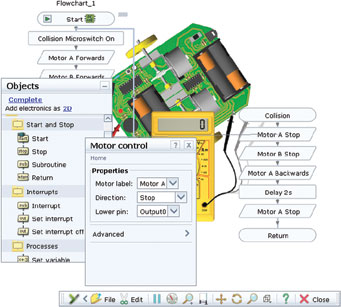
Yenka Gears can be used on its own, but it also works seamlessly with other Yenka products.
Yenka Electronics
In Yenka you can now change certain components’ maximum ratings – these can be found by double clicking on the component, and selecting the ‘Max Ratings’ tab from the Properties panel.
This can happen when your workspace (the white area) is smaller than the window size so that you see a grey border around it (typically when using a large resolution monitor). In this situation, dragging electronic components through the grey area causes them to be added as 3D components.
In order to avoid this problem, move the object pane so that it is over the white workspace area. Alternatively, you can increase the workspace size (from the “Space Properties” pane).
This warning message is presented when the voltage on an individual pin of an integrated circuit (IC) is higher than the positive supply voltage by more than the rated value (normally 1V). This will occur when you use a higher voltage (such as 9V) in your circuit without changing the supply voltage (such as with a Vdd connector) from the default 5V supply.
To solve this problem, use a Vdd connector to make sure the supply voltage for your IC is higher than or equal to the voltage applied on any individual pin. In most cases, connect the Vdd connector in parallel with the battery or voltage source you are using to drive your input if this would also be connected to your IC.
You can simulate higher-powered circuits by preventing objects from exploding. To do this, double-click on an empty area of the scene to open the Space properties pane. Click ‘Electronics’ > ‘Simulation’ and tick the box next to ‘Make objects indestructible’.
While this will prevent objects from exploding, it will not prevent simulation of circuits which are then impractical or unrealistic, as a result of this. You should exercise caution when using this mode.
While Yenka does support many older file formats, there may be objects within the model that are outdated and are no longer supported. This includes old versions of the graph object.
You can use a Vdd Connector (located under Lab Equipment > Power Supplies) to connect power supplies to integrated circuits (ICs), such as microcontrollers and logic objects.
A Vdd Connector allows you to automatically connect power supplies to integrated circuits and other electronics objects without having to draw wires between them.
To provide supply using a Vdd Connector, simply wire the Connector to the supply you wish to connect to your ICs (as in the example below). Yenka will automatically connect all logic objects and microcontrollers to your selected power source.
If you wish to provide different power supplies to different types of object (e.g. a different voltage for microcontrollers and logic gates), you can change which object types a Connector will supply from its Properties pane, which can be accessed by double clicking the Connector. If you are using multiple Connectors for different types of object, you should give each Connector a different name, since otherwise they will all be connected to each other and will likely short-circuit the power supplies.
You cannot currently make your own electronics objects. We include a large range of real life electronics components in our electronics product and you can select from a range of transistor and diode models, etc. If you would like a specific electronics object included in Yenka, then please contact us at support@yenka.com with your suggestion.
For oscillator circuits, the simulation time-step should be set manually as follows:
-
Edit the circuit.
-
Right click on the background and select “Properties” in the menu.
-
Choose “Simulation”.
-
Enter the desired time-step.
The smaller the time-step, the longer it takes to simulate a circuit, but the more accurate the simulation is. It is recommended that the time-step is set to 1 x (20 x oscillator frequency). When a signal generator is added then the simulation time-step is set 1 x (20 x signal generator frequency), unless the user has set a smaller value. This explains why a signal generator affects the simulation results.
Yenka PICs
Depending on the system you are using, PIC or PICAXE, you will need different hardware to export your program.
PICAXE microcontrollers are programmed in-place, so no separate programming hardware is necessary over and above your project or experiment board. A Serial Download Cable is required to connect the PICAXE board to your computer. Note that although USB download cables are available, programming directly over USB is not currently supported.
PIC microcontrollers require a separate programmer to transfer your program to the chip, before the chip can be placed in a circuit. A standard Serial to Serial cable is needed to connect this programmer to your computer.
Yenka supports programming the following microcontrollers:
-
PICAXE-08, PICAXE-08M, PICAXE-14M, PICAXE-18, PICAXE-18A, PICAXE-18M, PICAXE-18X, PICAXE-28, PICAXE-28A, PICAXE-20M, PICAXE-28X and PICAXE-28X1.
-
PIC16F84, PIC16F84A, PIC16F627, PIC16F627A, PIC16F628, PIC16F628A, PIC16F872.
-
Stamp Controller
Windows XP 64-bit and Vista 64-bit operating systems do not provide support for 16-bit programs. This affects the 3rd party programs Yenka uses to program PIC and STAMP microcontrollers. We do not currently have a way to program PICs on a 64-bit operating system. Please note that PICAXE chips are not affected and will work on a 64-bit operating system.
The interrupt objects in Yenka are designed to be compatible with the PICAXE interrupt BASIC commands. They are not currently compatible with PIC or STAMP devices and will not run on these microcontrollers or simulate in our software.
If you would like to use the interrupt functionality on a real microcontroller, please consider switching to a suitable PICAXE chip. The following chips currently support our interrupt commands:
- PICAXE 08M, PICAXE 14M, PICAXE 18A, PICAXE 18X, PICAXE 28A, PICAXE 28X, PICAXE 28X1
This error message will appear if you are trying to program the wrong microcontroller type (i.e. you have told Yenka it is a PICAXE-08M and you are trying to program a PICAXE-14M).
This error message will appear if Yenka cannot find your programming hardware. Make sure that:
-
you have selected the correct programmer and COM port in the export dialog,
-
your programmer is plugged into the correct COM port (or a recognised USB port),
-
and that your programmer is powered and functional.
It is possible to use a USB cable to program PICAXE chips, but you will need to ensure that it is configured so that it is associated with a port between COM1 and COM4. You can do this as follows:
-
To change the COM port in Windows, open Device Manager from the System Control Panel. Expand ‘Ports (COM & LPT)’ and open the properties for the AXE027 PICAXE USB port. Select the Port Settings tab and click the Advanced button to change the COM port. A window should appear with a drop down list of ports at the top. Select an available port between COM1 and COM4 and click OK. Click OK to close the port properties and exit Device Manager.
-
Now re-open Yenka, make sure the cable is securely connected, and select the COM port that you assigned.